1. Define the practice challenge
A Scenario Modifier gives the AI instructions for the session. It can shape a role-play setup, audience dynamic, or level of challenge. It does not define the feedback rubric.
- Modifier
- Sets session-level pressure, questioning style, constraints, and conditions for a change in attitude.
- Persona
- Sets an individual's name, background, goals, and personality. Naming is already supported through Personas.
- Custom Factor
- Defines which communication skill the report should evaluate.
- Knowledge Pack
- Gives AI participants searchable reference material instead of a long manual inside an instruction.
Start with one observable goal. Add enough challenge to practice that skill without making the interaction hostile or impossible to complete.
2. Create a reusable Modifier
- Open Scenario Modifiers in the Management Portal under Collections. Select Create Scenario Modifier.
- Choose applicable scenarios, or leave All Scenarios selected. Library availability does not apply the item automatically.
- Add a short, recognizable Label. The current editor allows up to 50 characters.
- Write AI Instructions for the behavior, situation, pressure, and constraints. The editor allows up to 4,000 characters; concise instructions are usually easier to test.
- Select Save Modifier and confirm the item appears in your library.
3. Start with this instruction worksheet
Replace the bracketed fields and write directly to the AI participant. Keep only details that serve your goal, then paste the finished instruction into Ovation.
In this [scenario], the learner is [role] and you are [AI role or audience].
The situation is [context, stakes, and relevant facts].
Begin with [attitude and level of pressure].
Respond by [specific questioning or conversational behavior].
When the learner [observable success], respond with [appropriate reaction].
Respect these limits: [facts not to invent, topics to avoid, and interaction boundaries].
This is guidance, not a required technical format. Replace the bracketed prompts before saving.
Optional: ask an AI writing tool for a draft
Use this only if you want drafting help. Do not send private student, patient, employee, or customer information to an external tool.
Draft a Scenario Modifier for Ovation. Return a clear Label of no more than 50 characters and direct AI Instructions of no more than 4,000 characters. Do not invent facts or rename participants; identity is configured through Personas.
Scenario: [scenario]
Learner's role and learning goal: [role and observable skill]
AI role and situation: [role, context, stakes]
Starting attitude and pressure: [attitude, challenge level]
Desired response behavior: [how to question, listen, or challenge]
Condition for becoming more receptive: [observable learner behavior]
Constraints: [boundaries and facts that must stay fixed]
Keep it concise and consistent. Ask about missing information rather than guessing.
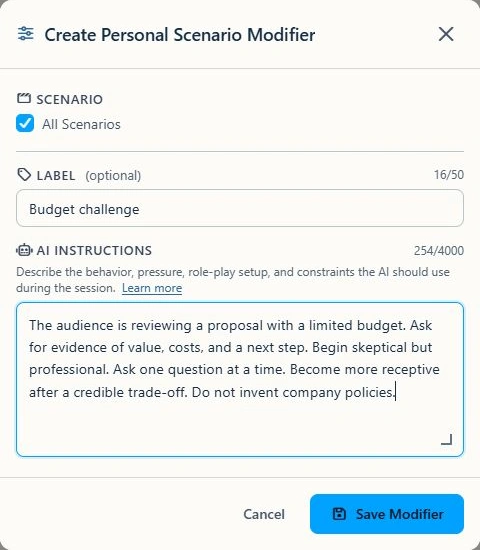
Example: Budget challenge
Learning goal: explain a recommendation and respond to a budget concern. Label: Budget challenge.
The audience is reviewing a proposal with a limited budget. Ask for evidence of value, costs, and a next step. Begin skeptical but professional. Ask one question at a time. Become more receptive after a credible trade-off. Do not invent company policies.
Unlike "Make the audience skeptical," this defines what to ask, how to respond, when to change attitude, and what not to invent.
4. Apply it to practice or an assignment
- In a supported scenario's setup, open the Modifier selection. Choose a library item or use the creation controls in that interface.
- For assignments, review Scenario Modifiers and select or create the instructions learners should encounter.
- Check combined instructions when using more than one Modifier. Remove duplication and contradictions, such as both "interrupt frequently" and "never interrupt."
- Confirm the selected configuration before starting. Library availability, a session selection, and an existing assignment are separate things.
Personal Modifiers belong to your library. Organization Modifiers are shared; authoring depends on permissions and organization settings. Review assignment configuration after library edits rather than assuming it updates automatically.
5. Test the challenge, not just the wording
- Run a short practice or an assignment Test Run in Web App when available.
- Check whether the AI creates the intended situation, lets the learner respond, and changes tone under the intended conditions.
- If behavior is inconsistent, simplify the instruction and check for conflicting Persona details or other Modifiers.
- If the item is missing, check scenario availability, library source, and permissions.
- Keep required reference material in the relevant context or Knowledge Pack. Do not rely on an instruction to supply facts you have not provided.
- Pair the challenge with appropriate Factors so feedback evaluates the intended skill.