1. Start with a simple review routine
- Confirm
- Check the scenario, recording, and assignment so you are reviewing the right attempt.
- Understand
- Read a Factor's explanation, then find the evidence in the transcript or recording.
- Act
- Choose one specific improvement, practice again, and compare similar attempts.
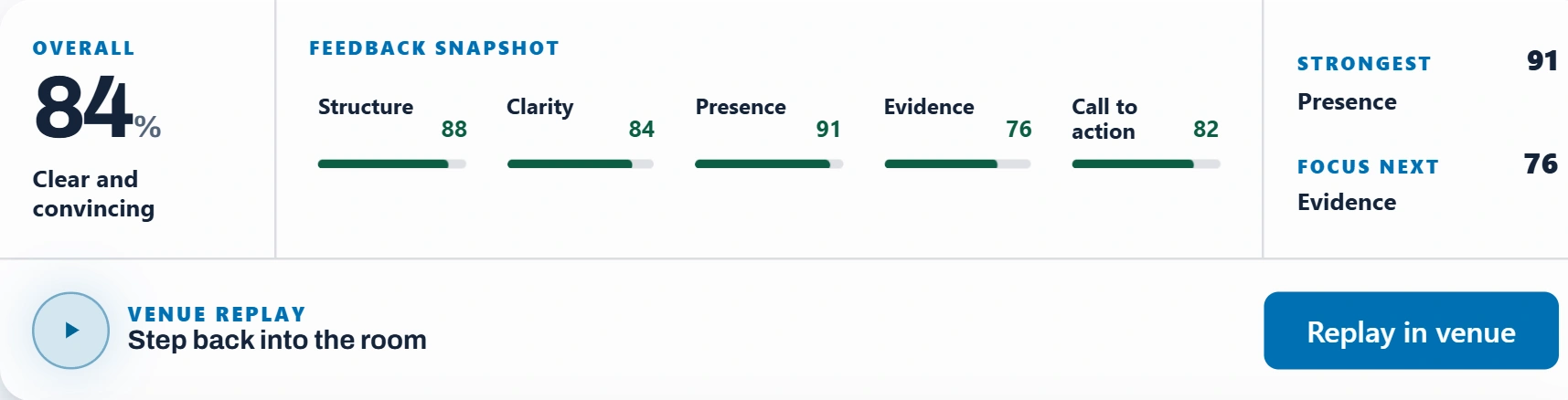
Not every activity produces the same report. Skill Drills and Workouts can use different feedback formats. This guide focuses on scenario recording reports.
2. Save and find the report
- Finish practice and follow the saving status shown in the app. Wait for confirmation that the recording is saved before leaving.
- In the Web App, open a saved recording from practice history. For assigned practice, use Assignments and View submissions when available.
- In the Management Portal, open Recordings and select an accessible recording. Instructors can also open submissions from assignments they manage.
- In the VR App or Desktop App, use the review screen after saving, or return to the Management Portal.
- If feedback is processing, return to the saved recording later. Saved audio and completed AI feedback are separate states.
3. Read Factors, Quotes, and Tips together
- Factors
- The selected evaluation criteria. Standard scenario practice uses five. Each scored Factor includes a rating and written feedback.
- Quotes
- Selected moments with feedback about what worked or could improve. Read the surrounding transcript for context.
- Tips
- Practical actions for another attempt. Choose one that supports your goal.
- Skills
- Some Web App reports show skill-growth information. Availability depends on the activity and feedback produced.
Labels and layout vary across platforms. Do not expect every report to contain every section or a fixed number of quotes and tips.
The same review habit across platforms
The VR App and Desktop App review screens also pair a Factor summary with written feedback. Use View Full Report when available to explore the complete report.
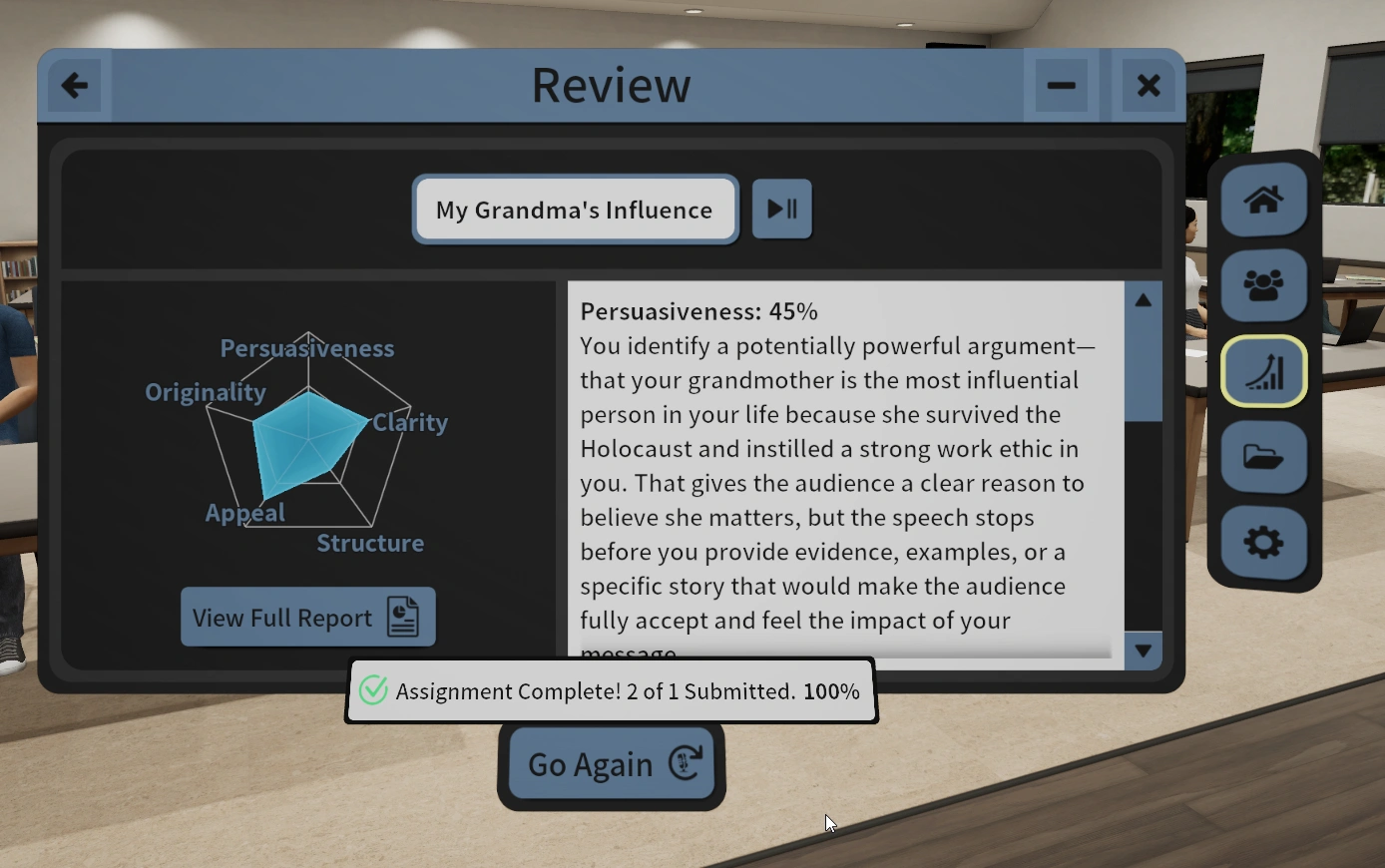
Read the explanation before judging the score
Factor ratings run from 0 to 100 and describe performance against the selected criteria. Assignment settings may hide scores from learners. AI feedback supports coaching; it is not a universal grade or a substitute for instructor judgment.
Compare attempts with similar scenarios, criteria, and conditions. Check the transcript and Factor instruction if a rating seems surprising. See Understand Factors.
4. Revisit the evidence
- Find a passage illustrating the feedback. Read your response and the preceding AI question.
- Listen to audio when available. Use playback-linked transcript turns or quote controls when supported.
- Check transcription errors against the recording. Speech-to-text mistakes can affect how written feedback reads.
- Use venue replay when the recording stored the required data and the control is available. It is not available for every activity or recording.
- Review saved materials or notes when present to understand the attempt's context.
5. Separate delivery from skill feedback
Analytics describe delivery. Factors evaluate communication against the selected criteria. Use both without treating them as interchangeable.
- Pace and pauses
- Check whether timing helps listeners follow the point. Faster is not automatically better.
- Filler words
- Look for repeated patterns that distract from meaning, then practice one adjustment.
- Pitch and loudness
- Explore variation and emphasis when voice data is available. These measures alone do not establish confidence or emotion.
- VR-specific measures
- Gaze and hand or gesture analytics depend on what the device captured. Do not expect them in a browser-only recording.
Availability depends on platform, captured data, activity, and assignment settings. Missing analytics do not necessarily mean the recording failed.
6. Turn feedback into another rep
- Recall your goal or read the assignment instructions.
- Choose one Factor or Tip and find a passage that illustrates it.
- Set a specific action, such as "State my recommendation first, then give one supporting example."
- Practice again under similar conditions. Compare relevant evidence and feedback, not just the overall score.
If something does not look right
- Missing recording
- Confirm saving status, the account used, and the correct assignment or history filter. Contact support if a confirmed saved recording remains unavailable.
- Feedback processing
- Reopen the saved recording later. If it remains stuck or shows an error, contact support with the recording details through an approved channel.
- Unexpected Factor
- Check the session's or assignment's selected criteria. Library creation does not apply a Factor automatically.
- No score or analytics
- Check assignment visibility, activity type, and captured data.
- Incorrect transcript
- Compare it with audio when available. Automated transcription and AI interpretation can be wrong.
- No sharing control
- Check permissions and organization restrictions. Ask the instructor or assignment creator about assignment-specific questions.
For general help, contact Ovation. Do not send sensitive transcript content unless needed and permitted by your organization.