1. Choose where the Factor belongs
A Factor tells Ovation what to evaluate after a recording. It does not tell the AI participant how to behave. Use a Persona or Scenario Modifier for that.
- Personal
- Available in your own library for independent practice.
- Organization
- Shared with your organization to support a common rubric. Creation depends on your role and organization settings.
- Assignment
- The assignment's own selected criteria determine its evaluation. A new library item is not automatically added to an existing assignment.
Sign in to an active account. Ask your administrator if shared content authoring is unavailable. Only managers and administrators can change organization-wide Factor defaults.
Decide what strong performance sounds like
- One skill
- Evaluate a specific task, such as explaining a recommendation, not every aspect of communication at once.
- Observable evidence
- Identify words or conversational behaviors available in the transcript and scenario context.
- Success criteria
- Explain what a strong response includes. Use your course framework when it fits the task.
- Useful feedback
- Ask for a specific strength and a practical improvement. Do not ask the AI to infer posture, facial expressions, or facts not captured in the recording.
2. Create the Factor
- Open Factors in the Management Portal, then select Create Personal Factor.
- Choose the scenarios where the Factor should be available, or leave All Scenarios selected.
- Enter a recognizable Label, up to 15 characters. Add an AI Instruction, up to 1,000 characters, describing the evidence and success criteria.
- Select Create factor. Confirm the item appears in Personal Factors. When editing an existing item, select Save changes.
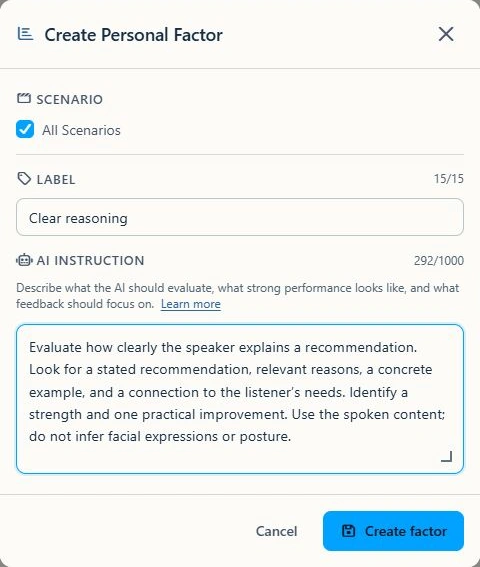
Example: Clear reasoning
Adapt this instruction to your own learning goal.
Evaluate how clearly the speaker explains a recommendation. Look for a stated recommendation, relevant reasons, a concrete example, and a connection to the listener's needs. Identify a strength and one practical improvement. Use the spoken content; do not infer facial expressions or posture.
"Grade communication" is too broad. Name the skill and evidence instead. Avoid asking several Factors to evaluate the same skill under different labels.
3. Select it for scenario practice
Saving a Factor makes it available. Selecting it determines where it is used.
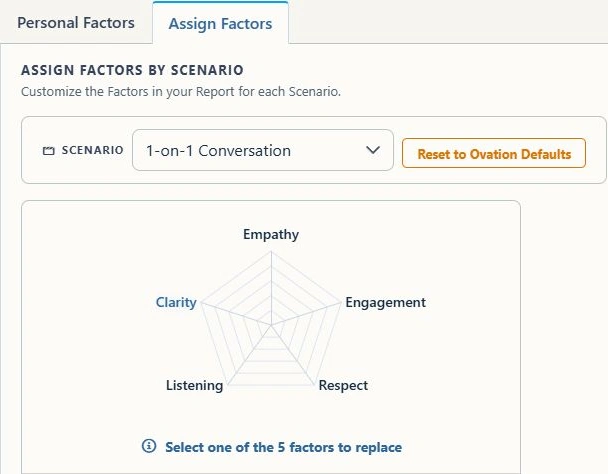
- On the Factors page, open Assign Factors and select the scenario.
- Select one of the five Factor positions. Search or browse the library, then choose the criterion to replace it with.
- Keep five distinct Factors selected. A complete, changed selection saves automatically. Wait for Saving to finish and resolve any displayed error before leaving.
- Confirm the set, then use a new practice recording to check the resulting report.
4. Use a shared or assignment rubric
- For a shared library item, open Organization Factors, select Create Organization Factor, complete the same fields, and select Create factor.
- To change organization defaults, a manager or administrator opens Default Factors and selects a scenario. A complete, changed set saves automatically.
- For an assignment, open its Factors configuration and choose the five criteria learners should use. The editor also supports creating a Factor and, when permitted, saving it to a collection.
- Check the assignment's own set. Personal selections can override scenario defaults; assignment criteria are separate from personal scenario selections.
Library creation, scenario defaults, and assignment configuration are separate actions. Changing a default does not automatically replace an existing assignment rubric. See Assignment Quick Start Guide: Management Portal.
5. Test before wider use
- Complete a short recording with the intended scenario and Factor set. For an assignment, use Test Run in Web App when available.
- Compare the Factor labels, written feedback, and transcript with your intended rubric.
- Refine vague instructions and test a new recording. AI feedback supports coaching; it does not replace instructor judgment.
- If a Factor is missing, check scenario availability, the selected set, and whether an assignment controlled the practice.
- If a change did not save, check the displayed error and resolve it before leaving.