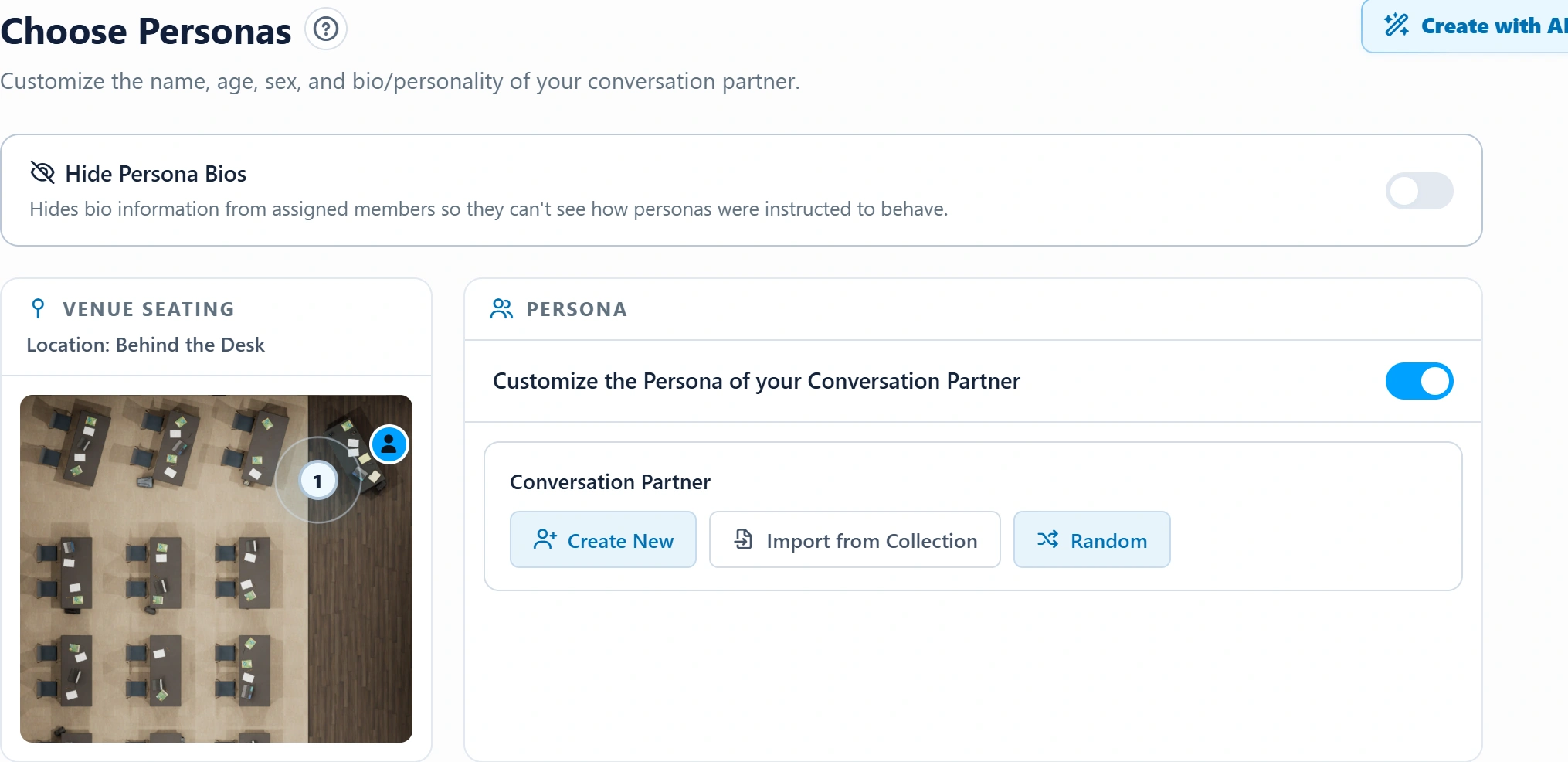
1. Decide who is in the conversation
A Persona is a reusable participant template with a name, appearance, voice, and optional behavior details. The scenario determines the available roles and participant positions.
- Persona
- Defines an individual's identity, background, goals, and response style.
- Scenario Modifier
- Adds session-level behavior, pressure, constraints, or role-play context.
- Custom Factor
- Defines what to evaluate after practice, not how the participant should respond.
- Knowledge Pack
- Supplies searchable reference material for grounded practice.
Start with the learner's task. One clear role is often more useful than a long biography. Use fictional names and cases unless you have permission to use real information.
2. Set identity, appearance, and voice
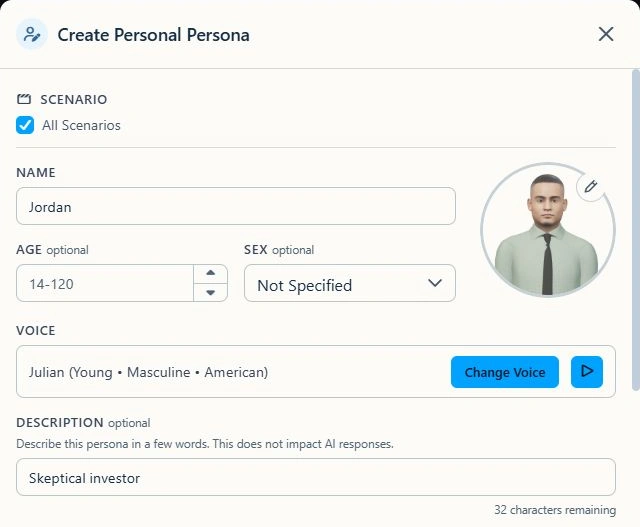
- Open Personas in the Management Portal under Collections. Select Create Persona.
- Choose applicable scenarios, or select All Scenarios. This controls library availability, not automatic placement in a session.
- Enter a Name, up to 50 characters. Age and Sex are optional; use them when relevant to the practice context.
- Select the avatar preview to change appearance. Use Change Voice to choose a voice and preview it when needed.
- Add an optional Description, up to 50 characters, to help identify the template. Description does not control AI responses.
3. Write the behavior, then save
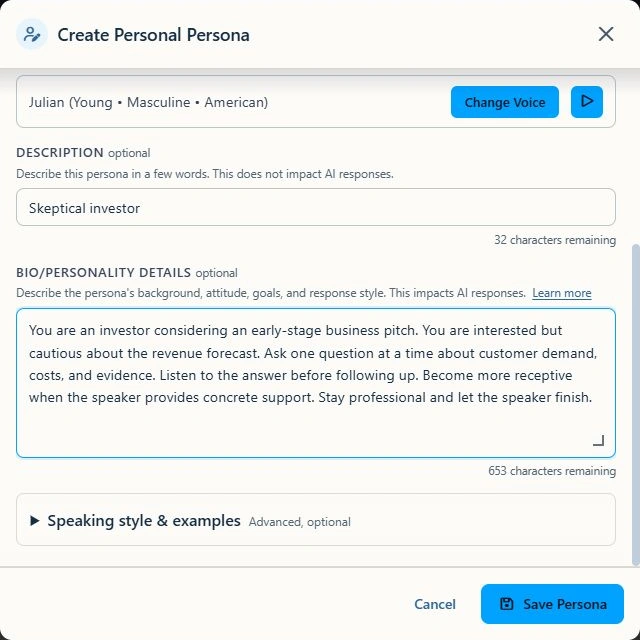
- In Bio/Personality Details, describe the role, background, attitude, goals, and response style. This field influences responses and allows up to 1,000 characters.
- State how the participant should react to the learner and what would make them more receptive, concerned, or convinced.
- Keep the instruction consistent with the scenario. Do not ask the participant to know private facts or recite a fixed script.
- If needed, expand Speaking style & examples. These optional advanced fields guide delivery and phrasing. Review AI-generated suggestions before using them.
- Select Save Persona and confirm the template appears in your library.
Example: a skeptical investor
Name: Jordan. Description: Skeptical investor. Adapt this Bio/Personality Details example to your scenario.
You are an investor considering an early-stage business pitch. You are interested but cautious about the revenue forecast. Ask one question at a time about customer demand, costs, and evidence. Listen to the answer before following up. Become more receptive when the speaker provides concrete support. Stay professional and let the speaker finish.
Give the participant a reason for skepticism and a path toward changing their view. "Be difficult" alone does not define a useful practice challenge.
4. Select the Persona for practice
- In a supported scenario's setup, open the Persona selection and choose a participant for the available role or position. Controls differ across the Web App, VR App, and Desktop App.
- For assignments, open Choose Personas. Use Import from Collection for a saved template or Create New to configure a participant.
- Review participant positions and venue seating when available. Scenarios do not all support the same number or type of participants.
- Use Hide Persona Bios in the assignment when learners should discover the personality during practice.