Choose the right import type
Imports are materials you see or use during practice. The Management Portal is the central place to upload and organize a reusable library.
- Slides
- Presentation decks or individual slide images. The Management Portal accepts PPT, PPTX, PDF, JPG, JPEG, and PNG. Slide notes can accompany a PowerPoint deck and can be edited after import.
- Text
- Scripts, talking points, resumes, or scenario context. Upload DOC, DOCX, PDF, RTF, or TXT, or enter text directly in the Management Portal.
- Board
- A JPG, JPEG, or PNG image for a supported whiteboard or chalkboard. Availability depends on the scenario, venue, and app.
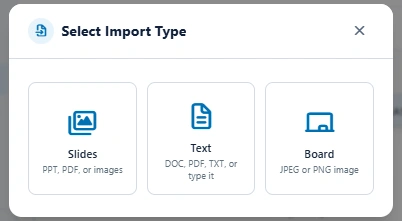
The upload limit is 150 MB per import. A file being accepted does not guarantee that every scenario supports that material. Check the setup options before preparing it.
Upload to your library
In the Management Portal, sign in with the account you use for practice and open Imports.
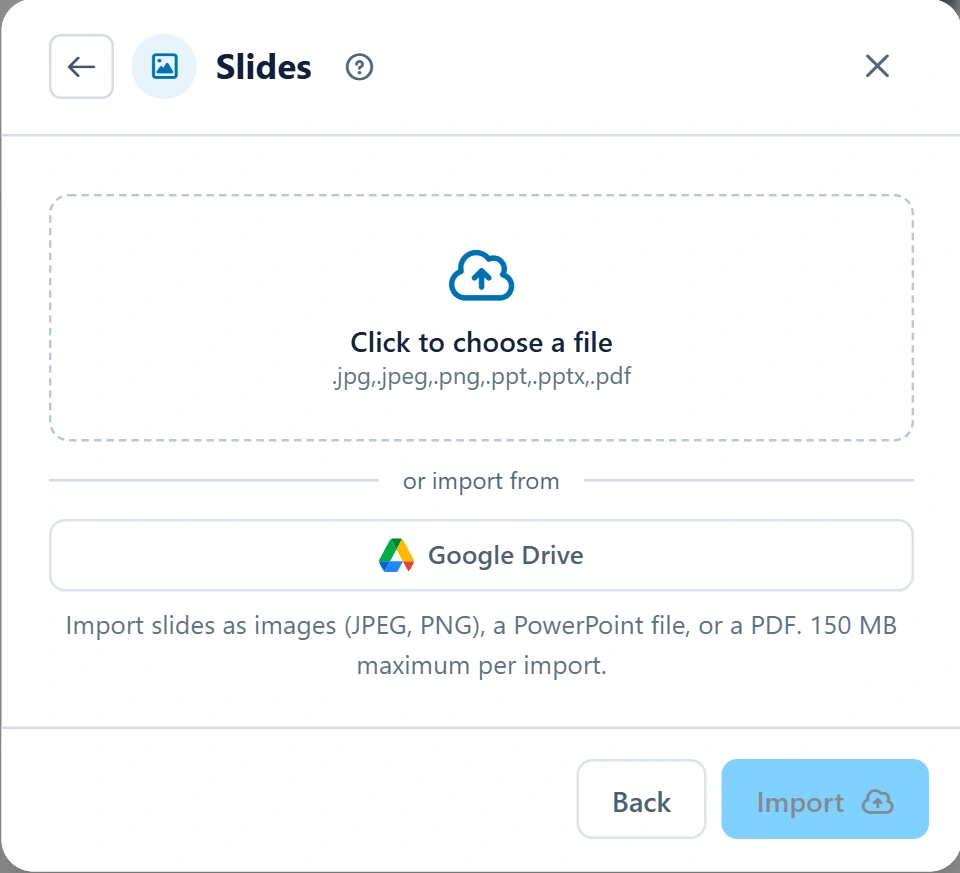
- Select Add Import, then choose Slides, Text, or Board.
- Choose files from your device or use Google Drive where offered. For Text, you can also choose Enter Text, give it a name, add the content, and save.
- Select Import and wait for processing to finish. PowerPoint, PDF, and document uploads may need conversion before they are ready.
- Open the finished item and review it. For slides, check the appearance, order, and speaker notes. For text, check that the content is readable and complete.
- Give it a clear name so you can find it when preparing a session or assignment.
Use materials in the Web App
Open the scenario or assignment setup. The controls you see depend on the practice activity and any assignment restrictions.
- A presentation deck
- Under the slide or presentation-aid controls, choose from Imports and select a ready slide deck. Convert PPT, PPTX, or PDF decks in the Management Portal first.
- Individual slide images
- Where Upload images is available, choose PNG, JPEG, or WebP files from your device, or use the offered Google Drive option. Turn on Save as an import if you want a reusable library item rather than only session materials.
- Speaker notes or a script
- Choose an existing text import under the speaker-text controls, upload a document, use Google Drive, or write and paste your own text. Review the preview before starting.
- Scenario context fields
- Where an Import button appears beside a text field, choose Your imports, Your device, or Google Drive. For a library item, select it and choose Use selected.
Direct Web App image upload is not the same as the Management Portal deck-conversion workflow. Import controls vary by scenario. A text field may shorten material to its character limit; review the field and any warning after import.
Use materials in the VR and Desktop Apps
Upload in the Management Portal first, then use the same account in the VR App or Desktop App.
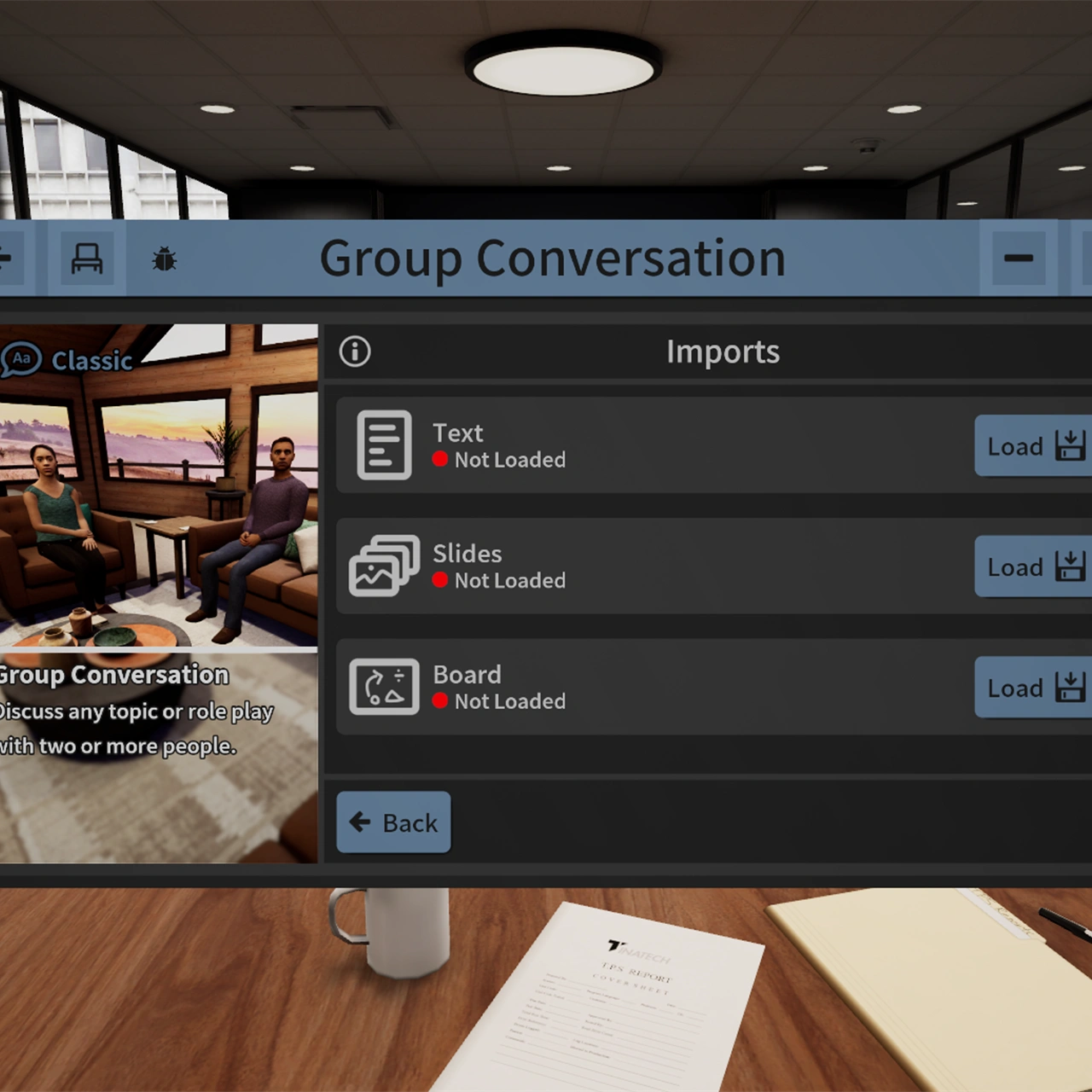
- Allow your imports to download when you sign in. If you uploaded while already signed in, open Manage and use Sync before looking for the new item.
- In practice setup, open Imports and choose Load for the supported material type.
- Select your prepared item, then check the relevant tool or display. Slides can appear on supported presentation screens or devices; text can appear on supported reading aids.
- If the venue supports a board import, load the image for the whiteboard or chalkboard. Test its readability before recording.
Not every venue or scenario offers the same tools. A board image is not a universal Web App presentation aid.
Prepare materials for an assignment
Imports can be part of an assignment rather than only a personal practice session. The assignment determines which material types and edits are available.
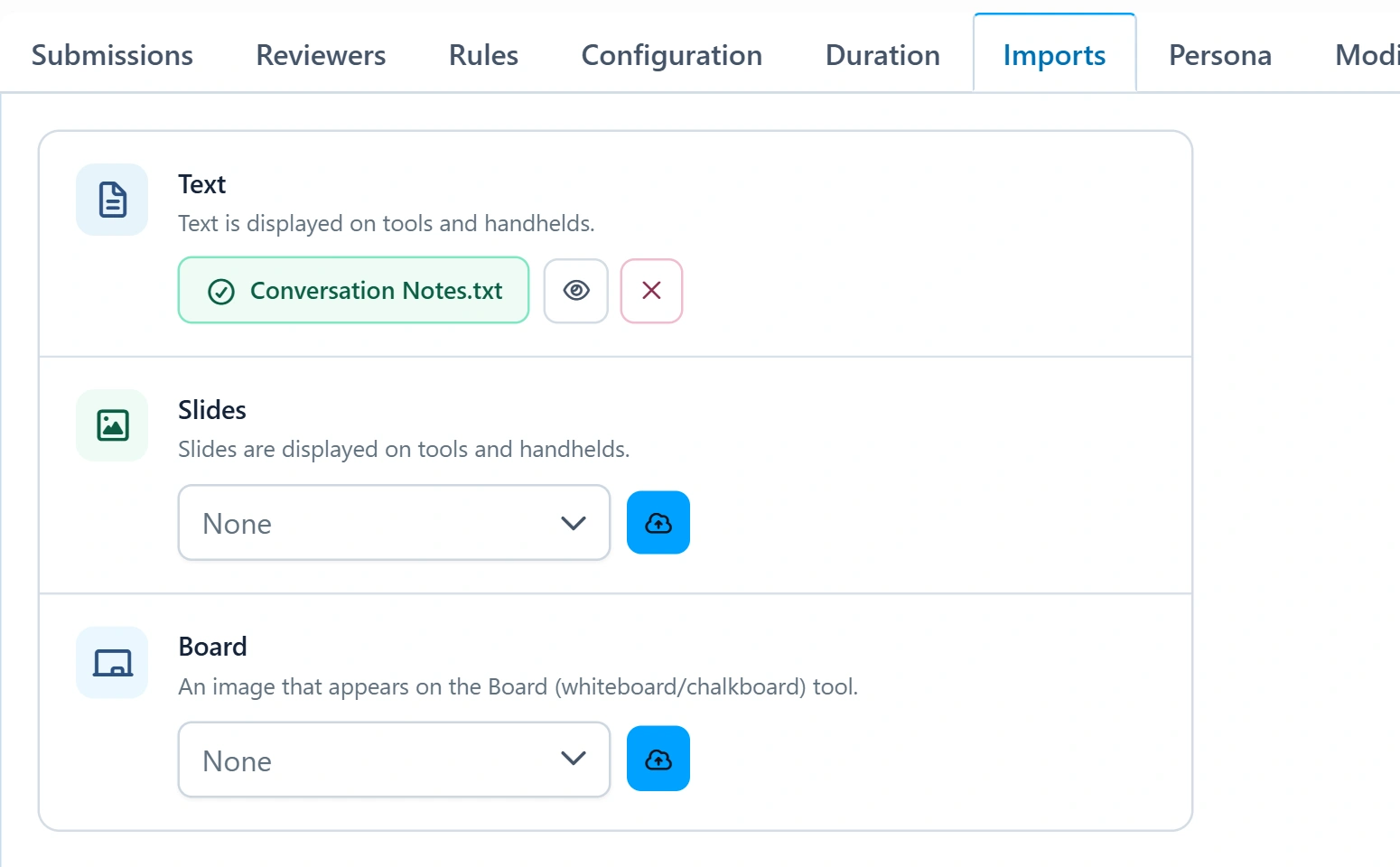
- Professors and managers: open the assignment's Imports tab and attach materials to the supported slots. Decide whether learners should use provided materials or add their own.
- Students: open the assignment and its Imports tab. Add or select your materials where permitted, then confirm which items are attached before opening practice.
- If Use in Assignment is available on a library item, choose the assignment and the offered destination. A text import may be used as practice material or as content for a supported scenario field.
- Check before replacing an existing attachment. Practice the assignment once to confirm that the correct material loads and remains readable.
If a slot or control is missing or locked, follow the assignment instructions or ask the professor or manager. Do not assume every learner can replace every attachment.
Check the result before you practice
- Slides look different
- Conversion can change custom fonts or complex slide content. Export the deck as one PNG or JPEG per slide in PowerPoint, then import the images as Slides. Check their order and manually restore speaker notes.
- Animation, audio, or video is missing
- Imported slides are static images. Do not rely on embedded media or animations for the practice session.
- Text is empty or incomplete
- Use a document with selectable, readable text. If a scan is not read correctly, convert it to readable text or paste the text directly. Check field limits and shortened-content warnings.
- An upload is not ready
- Check the Imports processing status and any error message. Confirm that the format and size are supported before trying again.
- An item is missing in practice
- Confirm the same account, a finished upload, the selected import type, and the scenario's supported tools. In the VR and Desktop Apps, sync again if needed.
- Materials should ground the AI
- Use Knowledge Packs for searchable source references. Imports are primarily the learner's slides, notes, and visible materials; they are not a replacement for a Knowledge Pack.
Use materials you have permission to share. Avoid unnecessary personal or confidential information, and review every import before recording or assigning it to learners.